Where Is the Editor Toolbar in Canva? (Desktop and Mobile)
TL;DR
The Canva editor toolbar appears just above your design, under the top menu, as soon as you select an element; in the mobile app it sits at the bottom of the screen. If it's missing, click an element and switch the mode button from Viewing or Commenting back to Editing. Then put it to work on your next launch post with our guide to Canva for startups.
 Mean CEO | Violetta Bonenkamp
27/07/2024 - 16 mins read
Join the F/MS Startup Game now
Access all AI tools, advanced features & more!

Harness our free AI tools for building your startup.

Get a customized live roadmap for your startup.

Join our Community and connect with entrepreneurs.
The editor toolbar in Canva is the white bar that appears right above your design, just under the colored top menu, the moment you click a text box, photo, shape or video. In the Canva phone app it sits at the bottom of the screen, under your design, and it only shows up after you tap an element.
I’m Violetta Bonenkamp, also known as Mean CEO, founder of Fe/male Switch, a startup game for women founders. I wrote this guide for founders who design their own pitch slides, event flyers and launch posts and lose time hunting for a button. Every step below was checked against Canva’s Help Center and tested in the live Canva editor in October 2026, with real screenshots. You get the desktop location, the mobile location, a troubleshooting table for a missing or disappeared toolbar, and a button-by-button cheat sheet.
Where is the editor toolbar in Canva?
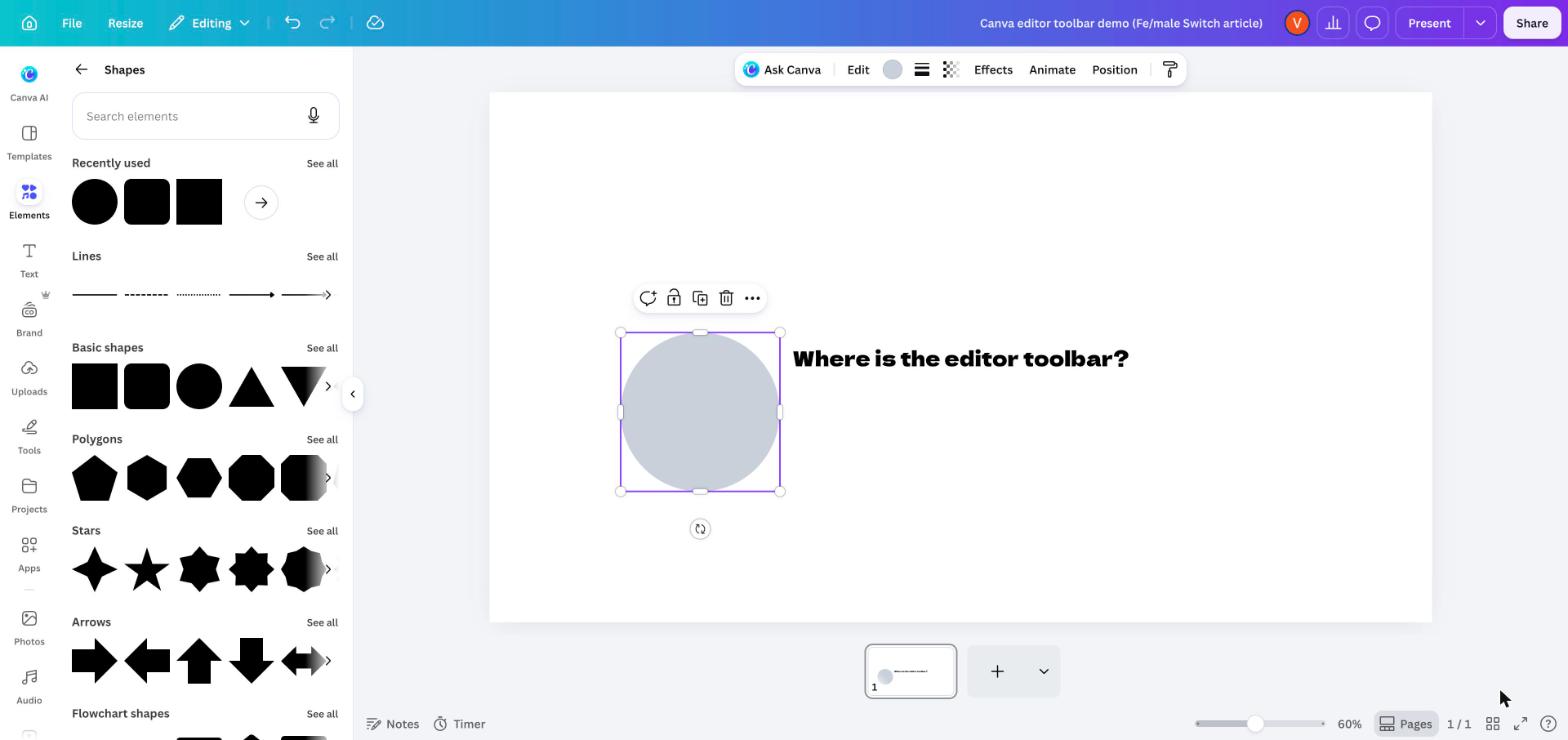
On desktop, the Canva editor toolbar floats in the middle of the screen, directly above your design and below the top menu bar. Select any element on the page and it appears; click away and it disappears again.
Canva redesigned the editor in its 2024 “glow up” (Canva Newsroom), and the old fixed toolbar became a quick actions toolbar that shows the editing options for whatever you selected: photo tools for an image, font and size for text (Canva Help Center: the glowed up editor). That help page is still listed under Canva’s editor updates section in 2026, and Canva’s current Design School editor lesson describes the same four areas: the side panel, the canvas, the top toolbar for whatever you have selected, and the page controls. The same lesson warns that the tools you see depend on your selection, design type, device, workspace settings and Canva plan.
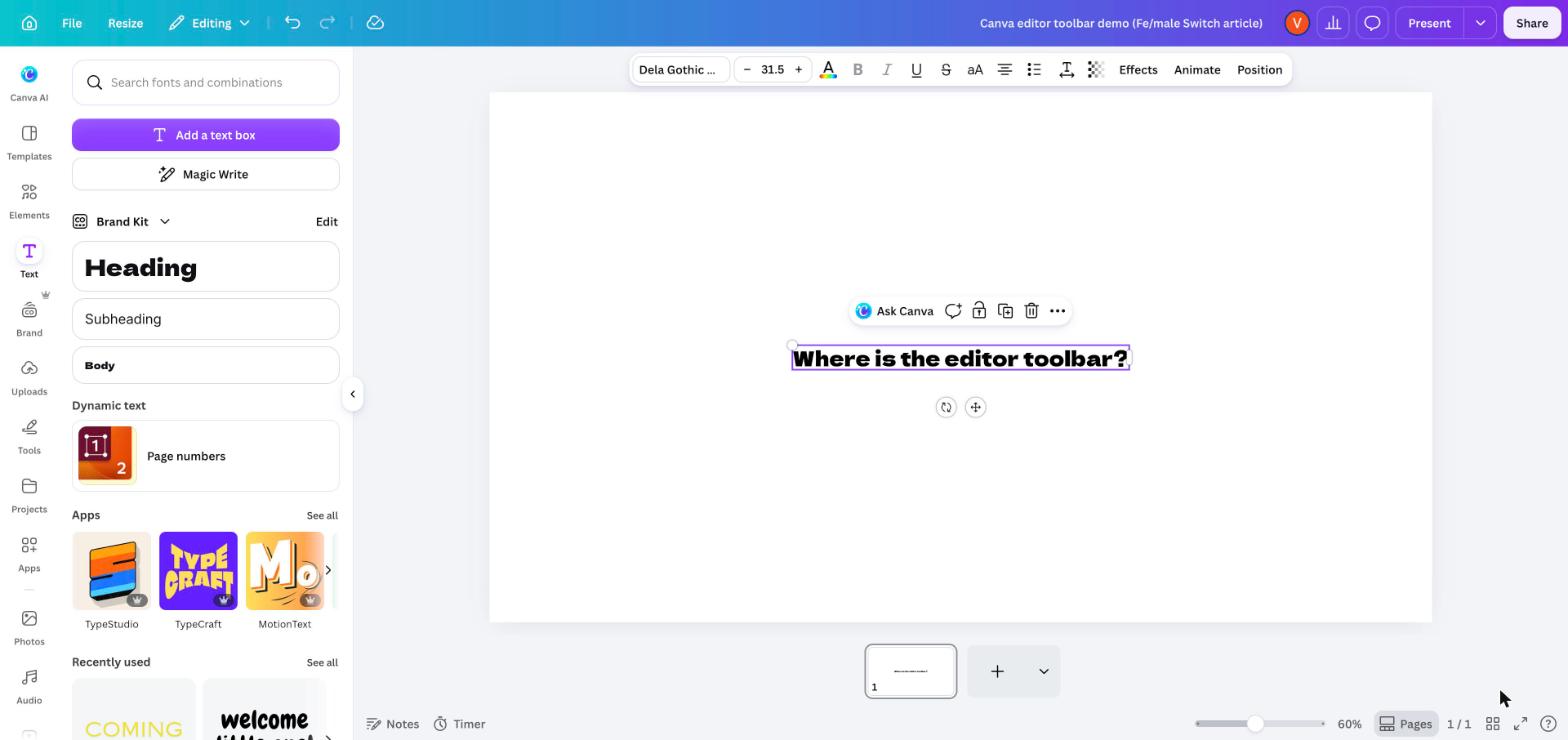
How to show the editor toolbar on desktop in 4 steps
- Open a design. From the Canva homepage, select Create a design, or open an existing design from Projects. The editor opens.
- Click one element once. A text box, photo, shape, video or table. A purple frame appears around it.
- Look straight above the page. The white bar that just appeared is the editor toolbar.
- Missing a button? Check the end of the bar. Canva tucks extra options behind a More button there (Canva: group, layer, and align elements), and some accounts see a >> arrow that opens the full edit panel (Canva Help Center).
Keyboard fans: with an element selected, press Cmd + F1 on Mac or Ctrl + F1 on Windows to jump straight to the editor toolbar (Canva keyboard shortcuts).
Why there is no toolbar when nothing is selected
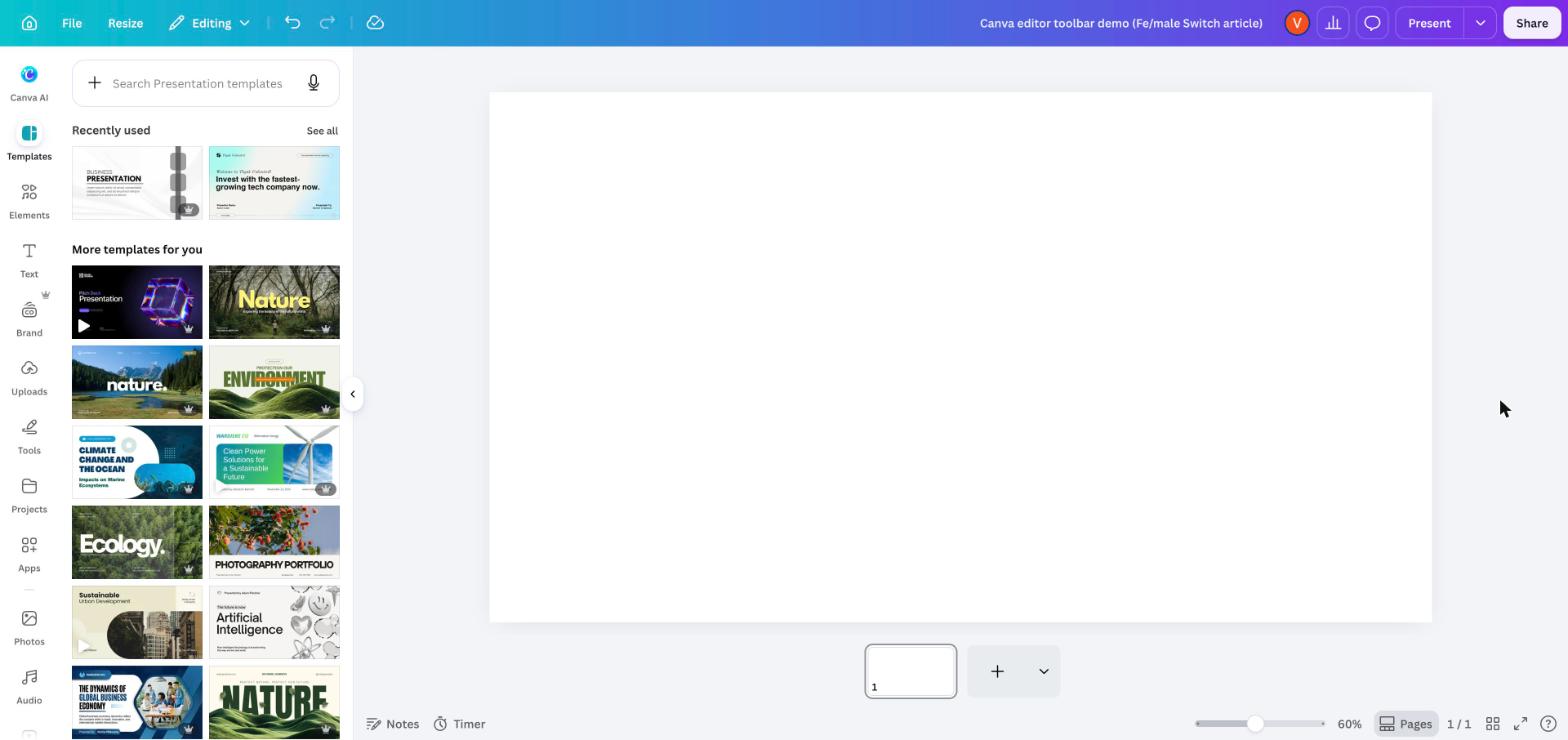
The screenshot below shows the same presentation with nothing selected. You see the top menu, the side panel and a blank page, and no toolbar above the canvas. That’s how the current editor works: the toolbar waits until you select something. Click an empty spot on the page itself and Canva selects the page, and the toolbar then offers page options such as Edit, background color and Position, as Canva’s Design School screenshots show.
Editor toolbar or floating toolbar?
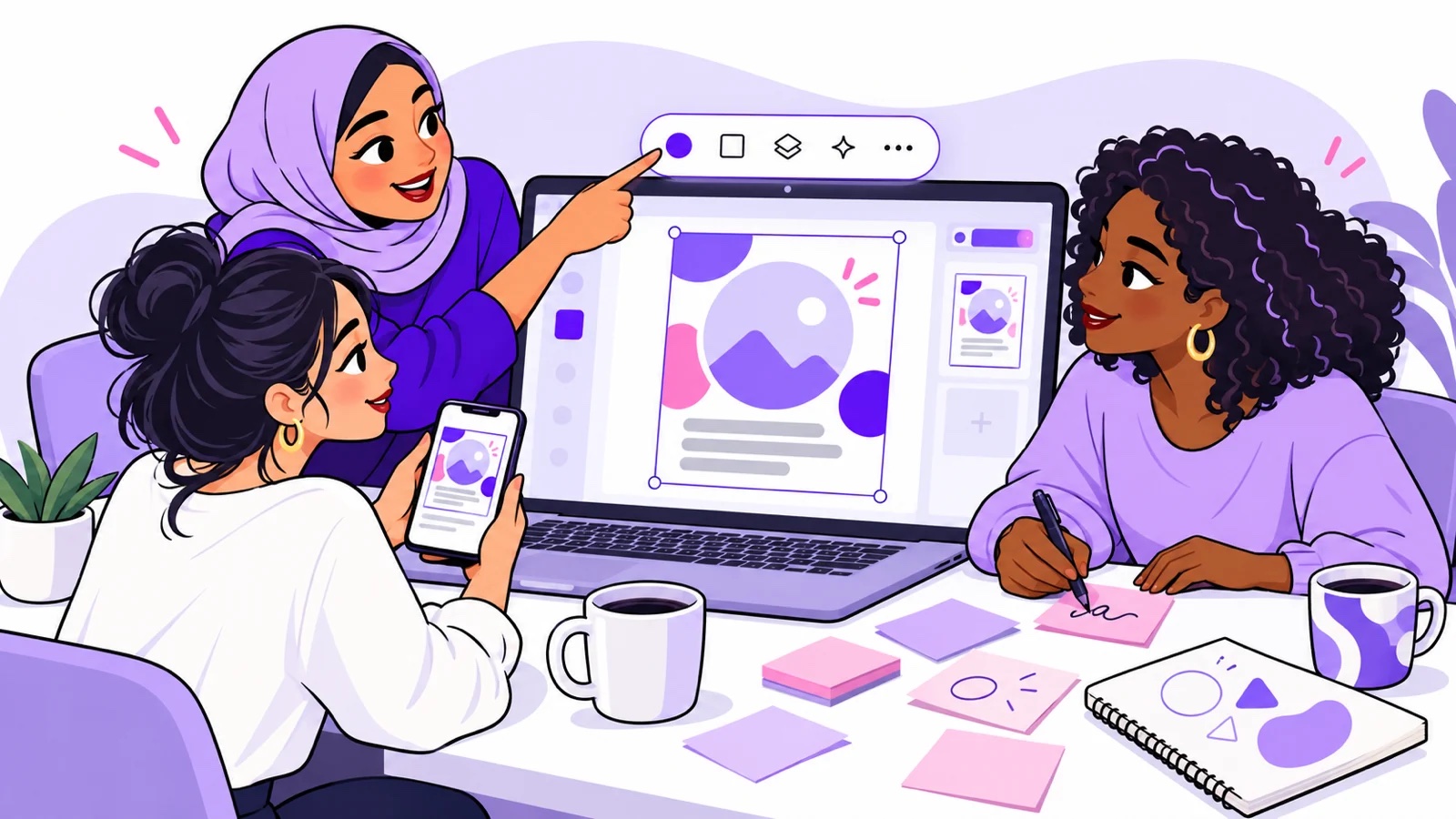
Canva shows two bars when you select something. The editor toolbar above the canvas holds the formatting. A smaller floating toolbar appears right above or below the selected element (Canva: add and edit text) with quick actions: Ask Canva, comment, lock, duplicate, delete and a three-dot More menu. That More menu holds Copy, Paste, Duplicate and Delete, and Shift + F10 opens it from the keyboard (Canva: use a screen reader in the editor).
Where is the editor toolbar in Canva on mobile (iPhone, iPad and Android)?
In the Canva mobile app, the editor toolbar runs along the bottom of the screen, under your design. Tap an element first; Canva’s own tutorials call it the bottom toolbar of the mobile app.
Find the toolbar on your phone
- Open a design from Create, Templates or Your Designs, the tabs at the bottom of the app’s home screen (Canva’s mobile app guide).
- Tap the element you want to change: text, photo, shape or video.
- Read the bar along the bottom edge. Swipe left on it to see more options, then tap More (Canva Help Center).
- Need duplicate, delete or other actions? Tap the More icon on the floating toolbar, or long-press the element.
- Editing text? The keyboard opens with its own toolbar on top for font style, color and size. Swipe left for more, tap the arrow up icon to expand it, and tap the close button to get back to the editor toolbar.
The app tabs are a different thing
The five tabs at the bottom of the app’s home screen (Canva AI, Create, Templates, Your Designs and More) move you around the app; they don’t edit anything. Canva says it is rolling these tabs out gradually, so your home screen can look slightly different (Canva Help Center). The editor toolbar only exists inside an open design.
What about iPad and Android tablets?
Canva lists the iPhone and iPad apps together in its technical requirements, and its help articles split instructions into Desktop and Mobile tabs. In the tablet app, follow the mobile steps. If your tablet shows the bar above the design, treat it like desktop. The rule never changes on any device: select first, then look for the toolbar.
| What you want | Desktop (browser or desktop app) | Mobile app |
|---|---|---|
| Find the editor toolbar | Above the design, under the top menu | Bottom of the screen, under the design |
| See hidden options | More button or >> at the end of the bar | Swipe left on the bar, tap More |
| Duplicate, delete, copy | Floating toolbar above or below the element, or Shift + F10 | More icon on the floating toolbar, or long-press the element |
| Format text while typing | Editor toolbar | Keyboard toolbar above the keyboard |
| Switch Editing, Commenting, Viewing | Mode button in the top menu | More icon in the header |
| Quick actions search | Press / or Cmd/Ctrl + E | Not available, computer only (Canva) |
| Offline editing | Chrome, Edge, Safari, Firefox above version 152, desktop app | Android app and mobile browsers; not the iOS and iPad apps (Canva) |
Why is my Canva toolbar missing or not showing?
A missing Canva toolbar comes down to three checks first: is anything selected, does the top menu say Editing, and do you have edit access? Locks, browser trouble and offline mode come next on the list.
The Viewing mode trap
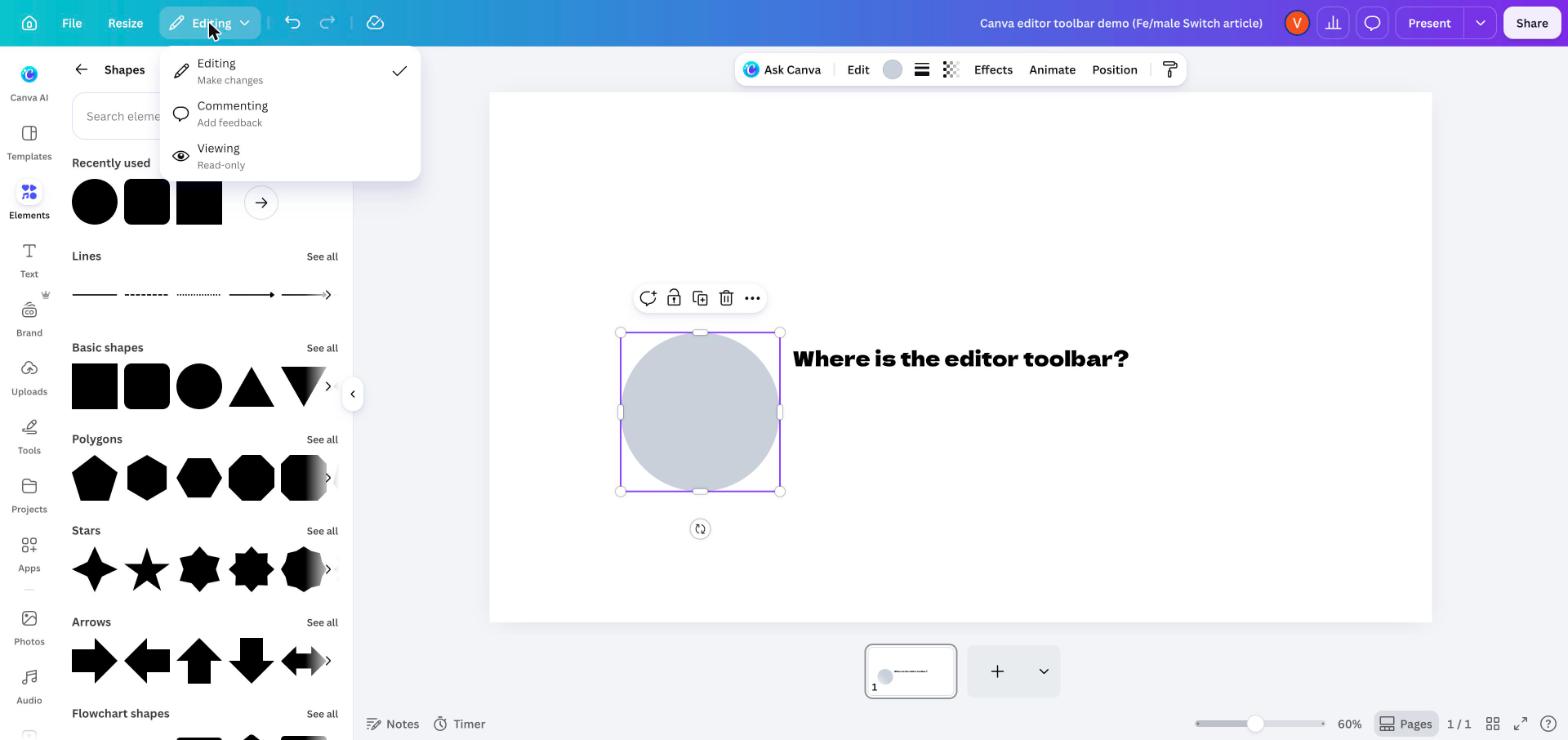
The top menu has a mode button next to File and Resize. Canva offers three modes there: Editing, Commenting and Viewing (Canva Help Center). When it says Viewing, the editor turns read-only: in our test the side panel and the editor toolbar vanished, undo and redo disappeared, and a View mode notice popped up at the top. Viewing mode is also switched on by default when you don’t have edit access to a design (Canva). The fix takes one click: open the mode button and pick Editing.
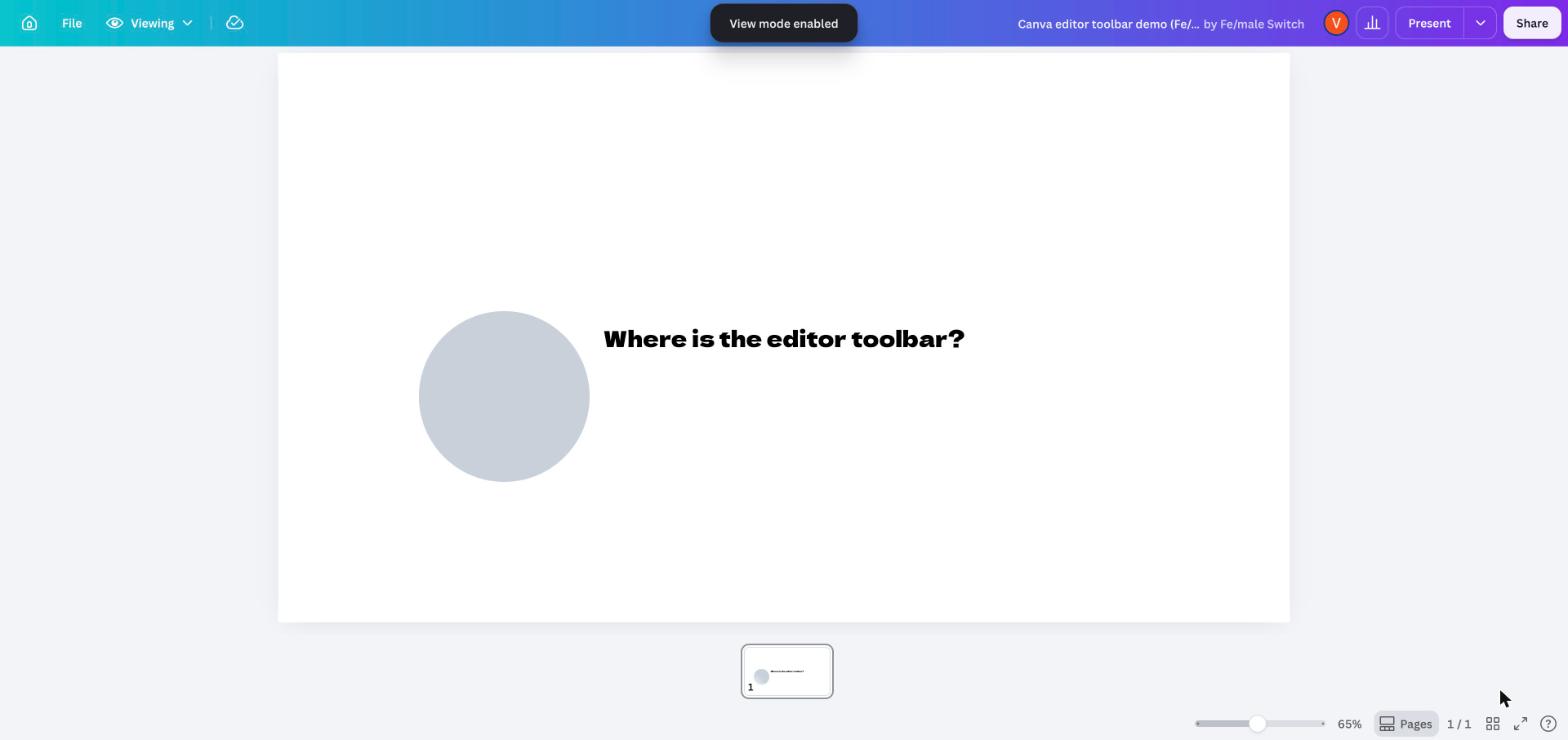
Canva toolbar troubleshooting table
| Symptom | Likely cause | Fix |
|---|---|---|
| No bar above the canvas, side panel still visible | Nothing is selected | Click a text box, photo or shape once. Clicking the gray area around the page deselects everything. |
| Side panel and toolbar both gone, top menu says Viewing | Viewing (read-only) mode | Click Viewing in the top menu and choose Editing. |
| Top menu says Commenting, you can only leave notes | Commenting mode | Switch the mode button to Editing. |
| You can’t pick Editing at all on a shared design | You were given Can view or Can comment access | Ask the owner for Can edit access in the Share menu (Canva). |
| Clicking an element shows only a lock icon | The element or the whole page is locked | Click the lock icon on the floating toolbar and remove the lock. If the whole page is locked, remove the page lock first. Option + Shift + L (Mac) or Alt + Shift + L (Windows) cycles lock states (Canva). |
| Student account, the lock won’t come off | A teacher locked it in Canva Education | Students can’t remove teacher locks; ask the teacher for the change. |
| Toolbar shows, but Position, Flip or another button is missing | It is folded behind More or >>, or that element type doesn’t support it | Click the button at the end of the bar. Shapes can’t be flipped at all (Canva). |
| Toolbar looks like a word processor, Tools tab missing | You’re in a Canva Doc | Docs have their own text toolbar; the Tools tab and locks aren’t available in Docs (Canva). |
| Everything except your slides is hidden | Present mode or full screen | Exit the presentation or full screen view to get the editor back. |
| Toolbar freezes, flickers or never loads | Browser, extension or app version problem | Use Chrome, Firefox, Safari or Edge, update it, clear the cache and refresh, try a private window to switch off extensions, reinstall the desktop app, and check Canva Status (Canva). |
| Ask Canva and library items don’t respond | You’re offline | Reconnect. Offline editing keeps text, color and shape tools working, but AI features, templates and sharing need internet (Canva). |
| Phone: only a bar above the keyboard | You’re in text edit mode | Tap the close button on the keyboard toolbar to return to the editor toolbar. |
| Phone: the option you need isn’t on the bottom bar | It sits off screen | Swipe left on the bar and tap More, or long-press the element. |
How do you get the Canva toolbar back when it disappears?
Click an element on the page. If no toolbar shows up, set the mode button in the top menu back to Editing, then refresh the tab. Try those three moves in that order before anything else.
The reset routine on desktop
- Click once on a text box or photo, inside the page.
- Check the mode button next to File and Resize. Pick Editing if it says Viewing or Commenting.
- Leave Present mode or full screen if you’re in it.
- If the element shows a lock icon, remove the lock from the floating toolbar.
- Refresh the browser tab, or reload the Mac desktop app with Cmd + R (Canva).
- Still gone? Clear the browser cache (it can log you out of other sites), try a private window, update the browser or reinstall the app (Canva: lagging or running slow).
The reset routine in the mobile app
- Tap the element, then look at the bottom of the screen.
- Swipe the bottom bar left and tap More for the rest of the tools.
- Close the keyboard toolbar with its close button if you were typing.
- Tap the More icon in the header and check you’re in Editing mode.
- Update the app. Canva says Android versions earlier than 2.328.0 must update to keep working (Canva technical requirements).
Keyboard shortcuts that bring the toolbar into reach
| Action | Mac | Windows |
|---|---|---|
| Move focus to the editor toolbar (with something selected) | Cmd + F1 | Ctrl + F1 |
| Move focus to the canvas | Cmd + F2 | Ctrl + F2 |
| Open the More actions menu for the selected element | Shift + F10 | Shift + F10 |
| Open or close the side panel | Cmd + / | Ctrl + / |
| Open Quick actions search | / or Cmd + E | / or Ctrl + E |
| Switch an element’s lock on or off | Option + Shift + L | Alt + Shift + L |
Sources: Canva screen reader guide, Canva keyboard shortcuts and locking elements, as of October 2026. Canva’s own tip for the / shortcut: type “heart” and press Enter, and a heart lands in your design without a trip to the side panel (Canva: Quick actions).
What does each button on the Canva editor toolbar do?
Every button on the Canva editor toolbar changes the element you selected, so the set of buttons changes with the element. Text gets font tools, a photo gets Edit and Crop, a video gets a trim icon. Here’s what we saw in the October 2026 editor, cross-checked with Canva’s help articles.
| You select | The toolbar shows | Source |
|---|---|---|
| Text box | Font, font size with minus and plus, text color (A), bold, italic, underline, strikethrough, letter case (aA), alignment, list, spacing, transparency, Effects, Animate, Position | Our screenshot, Canva: format text |
| Shape | Ask Canva, Edit (swap the shape), color, border style, transparency, Effects, Animate, Position, Copy style (paint roller) | Our screenshot, Canva: shapes |
| Photo | Edit (opens the photo editor), Crop, Flip, Position | Photo editor, resize and crop, flip and rotate |
| Video in a presentation or social post | Trim icon, Crop, Position | Canva: trim videos |
| Table | Color tile at the start of the bar, Border | Canva: table borders and colors |
| The page itself | Ask Canva, Edit, background color, Position | Canva Design School |
| Several elements (Shift + click) | Position for layers and alignment; Group sits on the floating toolbar | Canva: group, layer, align |
5 toolbar buttons worth learning first
- Position: moves elements forward, backward, to front or to back, lines them up with the page, and under Advanced takes exact width, height and rotation values (Canva).
- Copy style: the paint roller icon copies the look of one element onto another, so ten headings match in ten clicks (Canva).
- Transparency: the checkerboard icon fades a photo behind your text so the words stay readable.
- Effects: adds shadows, background color behind text and curved text.
- Spacing: the icon with arrows opens line and letter spacing sliders, which fix cramped headlines faster than changing the font.
Editor toolbar, side panel and top menu: which one does what?
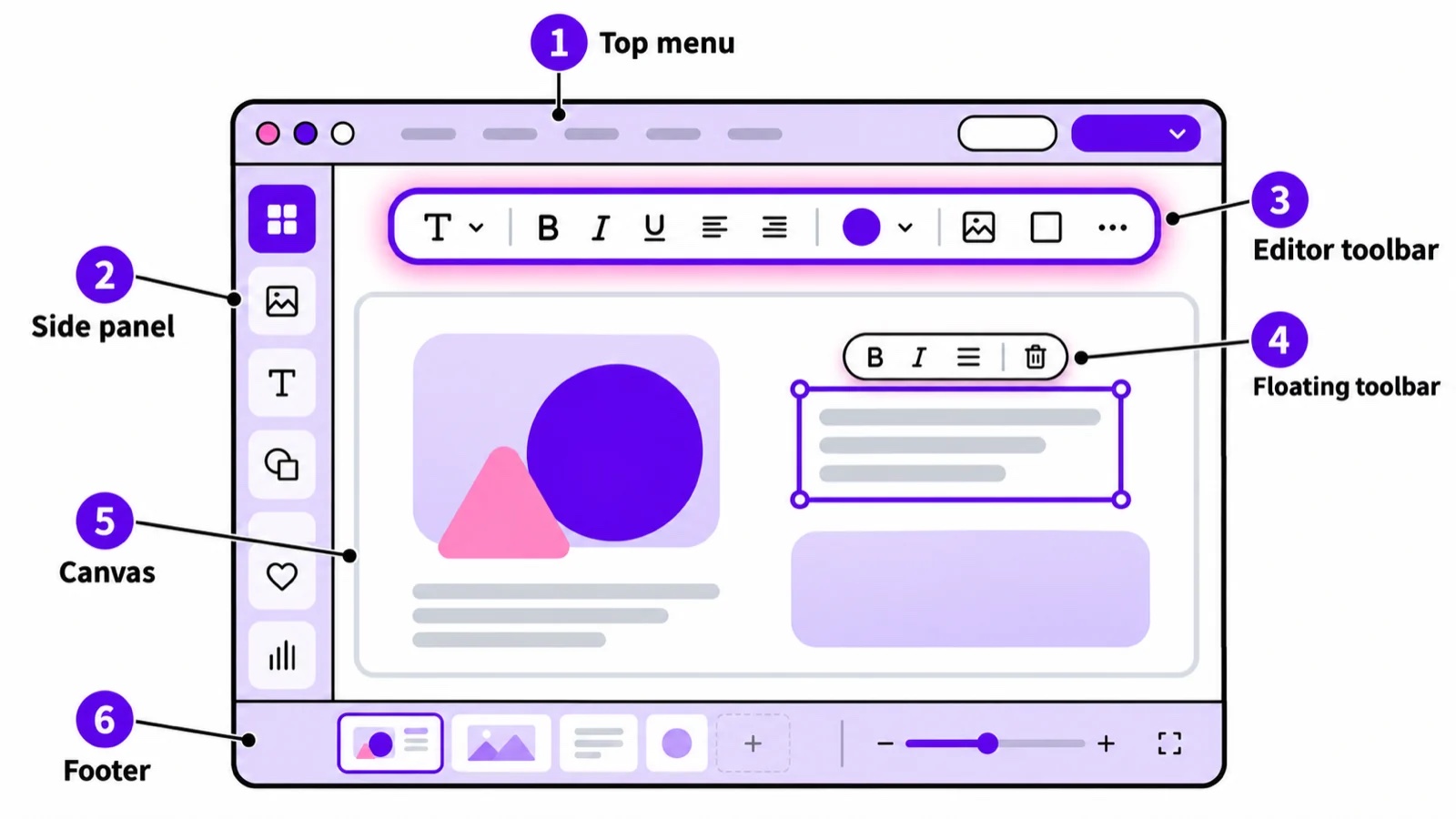
The top menu bar handles the whole design, the side panel adds new things, and the editor toolbar changes the thing you selected. Two smaller areas finish the map: the floating toolbar next to your selection and the footer with pages and zoom.
| Area | Where it sits | What it does | What you’ll see (October 2026) |
|---|---|---|---|
| Top menu bar | Colored strip at the very top | Actions for the whole design | Home, File, Resize, mode button (Editing), undo, redo, save status, design title, Present, Share |
| Side panel | Left edge | Adds content and tools | Canva AI, Templates, Elements, Text, Brand, Uploads, Tools, Projects, Apps, Photos, Audio |
| Editor toolbar | Above the canvas, appears on selection | Formats the selected element | Changes per element (see the table above) |
| Floating toolbar | Right above or below the selected element | Quick actions on that element | Ask Canva, comment, lock, duplicate, delete, More |
| Edit panel | Opens when you pick a tool or expand the toolbar | Full settings for the selected element | Closes with its close button (Canva) |
| Footer | Bottom of the editor | Pages, notes and view | Notes, Timer, zoom slider, Pages, page count, grid view, full screen, help |
Where is the Tools tab in Canva?
Plenty of people who type “where is the tool bar in Canva” want the Tools tab. It lives in the side panel on the left and groups Shapes, Lines, Sticky Notes, Draw, Text and Tables in one place (Canva: the Tools Tab). Draw moved in there too, which is why the old Draw tab is gone. Canva Docs don’t have a Tools tab; anywhere else, refresh the page or restart the app if it’s missing.
How can founders use the Canva toolbar to make startup visuals faster?
Use the toolbar in a fixed order: template, text, style copy, alignment, transparency, motion, proofread. Here’s the workflow, built only from the buttons covered above.
- Start from a template in the side panel, sized for the channel: Instagram post, pitch deck slide or event flyer. Planning a women’s meetup? Pair the flyer with our program ideas for ladies meetings.
- Set the headline once. Click it, pick font and size on the editor toolbar, then use Copy style to paint that look onto every other heading.
- Line things up. Shift + click the logo and the headline, open Position and use the alignment options so the layout looks intentional.
- Fade the background photo with Transparency so your text stays readable on a phone screen.
- Animate one thing only: the element you want people to notice first.
- Proofread in Viewing mode. Switch the mode button to Viewing before you share, and you can’t nudge anything by accident. Then switch back to Editing.
Building a brand from zero? Our guide to Canva for startups covers brand kits and templates, and the same toolbar lets you make your own startup memes in Canva. Need captions? Borrow a line from our startup jokes or draft a week of posts with the free social media post generator. When the visuals are ready and you need a landing page, compare Tilda templates, and keep the rest of your stack in our list of tools for entrepreneurs.
If you would rather practice launching with real tasks, the Fe/male Switch startup game walks you from idea to first customer.
FAQ about the Canva editor toolbar
What is the editor toolbar in Canva?
It’s the bar of editing options that appears above your design when you select an element. It shows different buttons for text, photos, shapes, videos, tables and the page itself.
Where is the editor in Canva?
The editor is the workspace that opens when you open a design. On desktop, select Create a design on the homepage or open a design from Projects. In the app, tap Create, Templates or Your Designs and open a design.
Where is the top toolbar or editor menu bar in Canva?
The colored strip at the very top is the menu bar: Home, File, Resize, the mode button, undo, redo, the design title, Present and Share. The editor toolbar appears just under it once you select something.
Why did my Canva editing bar disappear?
You clicked off the element, or the design is in Viewing or Commenting mode. Click an element, then set the mode button in the top menu to Editing.
How do I show the toolbar in Canva?
Select any element on the page. With something selected, Cmd + F1 (Mac) or Ctrl + F1 (Windows) moves keyboard focus to the toolbar.
Where is the editor toolbar in Canva mobile?
At the bottom of the screen, under your design, after you tap an element. Swipe left on it and tap More for the rest of the tools.
Where did the Draw tool go in Canva?
Draw now sits inside the Tools tab in the side panel, next to Shapes, Lines, Sticky Notes, Text and Tables.
Can I move or customize the Canva editor toolbar?
Canva’s Help Center doesn’t describe a setting for rearranging the editor toolbar as of October 2026; it rearranges itself for each element. You can pin and reorder the tabs of the homepage side panel on desktop and Android tablets (Canva).
Is the toolbar the same in the Canva desktop app?
Yes. The Mac and Windows apps use the desktop layout, and Canva’s help articles cover the desktop app and the browser together. The Mac app adds Cmd + R to reload when something gets stuck.
Does the Canva toolbar work offline?
Partly. Designs you made available offline keep text, color, shape and animation tools, while AI features, templates, sharing and downloads need internet. Offline editing isn’t supported in the iOS and iPad apps.
Keep learning
- Startup problem statement examples: write the sentence your pitch slide is built on.
- Problem statement canvas: a one-page frame to sketch before you open Canva.
- Business model canvas ideas: turn the plan into a slide that makes sense.
- Entrepreneur games: practice founder skills in a playful format.
- Free courses to start a business: build the business behind the visuals.
- Canva for startups on the Fe/male Switch blog: how small teams set up templates and brand kits.
Authors
Mean CEO | Violetta Bonenkamp AUTHOR
MeanCEO (aka Violetta Bonenkamp) is a serial startup founder who brings a decade of entrepreneurial experience to the table. Armed with five Higher Education degrees (including an MBA) and profound knowledge in sectors like blockchain, AI, zero code and education she is a maestro in turning ideas into validated businesses, building prototypes in a few hours and devising marketing strategies for tech startups that increase founder's chances of success. Recognized as one of the top 100 women in EU startups, her guidance is a treasure trove for upcoming and established entrepreneurs alike. Through her venture into entrepreneurship, she has created the "gamepreneurship" methodology, an innovative method for learning business through gameplay.
Elona Musk
Elona Musk stands as a mix of innovation and expertise in the realm of AI, serving as the Chief AI Officer at Fe/male Switch. As an embodiment of the startup game for women, Elona is the co-founder you dream of - knowledgeable, always active, capable of keeping trade secrets to herself and equity-free. With her hands-on approach in entrepreneurship simulation, she provides vital strategies and insights that are essential for navigating the complex startup journey and saves entrepreneurs hours of work by automating many tasks, starting from market research to managing social media to writing business plans. Whether it's a marketing strategy for tech startups that you need or a solid IP strategy, Elona's AI-driven insights help carve successful paths for entrepreneurs who don't have technical or startup skills.
Who we are
We are experienced and fun entrepreneurs and awesome AI PlayPals who love building a startup simulator for you to succeed in business

Violetta Bonenkamp
Business and AI expert

Dirk-Jan Bonenkamp
Legal, IP and finance expert
Elona Musk
The first AI entrepreneur
Petra Thiel
The first AI startup investor
Samantha Altman
The first AI startup mentor
Sia Quick
AI Market Research expert
Unleash your inner founder with AI Startup Tools!
Don't just dream it, build it with our range of AI startup tools. From brainstorming ideas to naming your product and crafting a unique logo, these AI tools are your secret weapon to conquer the startup world.
 Newest
Boost Your SEO Game
Generate a customized SEO strategy for your small business agency by answering a simple question. Our tool focuses on free and easy…
 27
19
5/5
Newest
Positioning Pro - Your Strategic Partner
Positioning Pro helps bootstrapped entrepreneurs discover effective segmentation and targeting strategies without spending money. Get tailored insights simply by answering one question.
13
6
5/5
Newest
Gated Content Strategy Tool
This tool provides actionable strategies for bootstrapped entrepreneurs, leveraging free and easy methods to kickstart your journey.
25
18
5/5
Recommended for you
Pitch Deck Agencies for Climate Tech Startups, Energy and Biotech Founders
Pitch deck agencies for climate tech startups, energy and biotech founders: who handles science-heavy decks, published prices and how to brief them.
Read more
Write for Us: Business, Technology and Startup Guest Posts
Write for us: business, technology, AI and fintech guest posts for founders. See what Fe/male Switch publishes, the guest post checklist and how to pitch.
Read more
7 Catchy and Unique Business Name Ideas
Explore 7 catchy business name ideas that stand out! Get easy tips, hacks, and a splash of humor to kickstart your startup journey! Dive in and find your…
Read more